
This section provides instructions on how to administer, invigilate and manage the OSSLT. If you have not scheduled the OSSLT assessment, refer to instructions in Before the OSSLT to schedule your sessions.
Ensure you have the SEB or Assessment Lock password before starting the OSSLT. Your school administrator will provide this password which is found in the school administrator’s Technical Readiness Checklist. You will need to enter this password on each device before completing the steps below.
Summary of steps during the OSSLT
- Log in to your account and access your grouping.
- Click Manage Students for student list, OENs, and accommodations information.
- Set up devices and logins for students. Students require their OEN and the class access code.
- Provide the alternative version of the test to students who have been registered to receive it.
- Unlock the lockdown browser on each device using the SEB or Assessment Lock password. For students requiring alternative access because of non-compatible assistive software, please refer to Alternative access for specific students with accommodations.
- Have students log in to the e-assessment platform using their OEN and the access code for the group.
- Read the OSSLT script.
- Unlock Session A for students. If any students are absent or in an unsupervised setting, ensure their sessions stay locked.
- Instruct your students to complete their work in the session before they click Submit. A session must be completed in a continuous sitting, and if a student does not submit their work when completed, it will be automatically submitted by the system by end of day. Refer to Autosubmission of sessions. It is the responsibility of the school to schedule the session to meet the needs of the students.
- If a student accidentally clicks Submit, refer to instructions about unsubmitting a session.
- Repeat the steps above for Session B.
- Transcribe any student responses into the e-assessment platform for those using the Alternative Version and have not yet been entered into the e-assessment system.
- If necessary, click Report an Issue on the Invigilation page and record any issues that may affect the security, validity or reliability of the assessment.
- Have students complete the questionnaire after they have completed all sessions of the OSSLT.
- Click Submit to EQAO for scoring on the invigilation page to close the OSSLT for all students. Student responses will now be sent for scoring.
Step 1 – Reading the scripts
Please read aloud the script for Session A and Session B to your grouping before you unlock the session and begin the OSSLT.
The sessions must be completed in the order in which they are presented. Each session must be completed in one continuous sitting and students may not be unsupervised at any time during a session. Once a scheduled session is completed, the student responses will be either sent to EQAO by the invigilator, or automatically closed at the end of the school day. Once a supervised session is finished, it cannot be reopened for students on a different day.
Refer to the OSSLT Framework for more information about the suggested duration of each session.
Step 2 – Starting the test
Begin the test once you have scheduled a session that provides the students with the time they require. Once a session is started, it needs to be completed in one continuous sitting. According to the Professional Responsibilities students may not be permitted to return to a session to change or finish answers after an unsupervised break.
- Start the SEB or Assessment Lock application on each device and enter the password provided by the school administrator for students who are not using additional assistive technology.
- For students who are using additional assistive technology, please see How Students Access the E-Assessment Platform.
- Log in to your teacher account.
- To open a grouping, click Select Grouping.
- If you have a practice test session still open, click End Practice Test to allow the scheduled OSSLT to be opened.
- Under the Ontario Secondary School Literacy Test, click Ready to Start.
- In the Invigilation page, you will see the important information for invigilating the assessment.
- Assist students in logging into the OSSLT:
- Start the SEB or Assessment Lock application on each device and enter the password provided by the school administrator.
- Ask your students to log using the access code and their OEN.
- Students must enter their last name to access the test.
Step 3 – Invigilating the test
In the Invigilation page, you can:
- find the access code (pink box on top right)
- view your students and their OEN
- unlock or lock sessions (individually or for all students)
- pause the session
- report an issue
- unsubmit a session
- automatically submit
- submit the responses to EQAO for scoring
Locking or unlocking a session
On the Invigilation page, you must click the lock icon associated with a specific session to begin a session. Unlock sessions only for students who are supervised and actively completing the assessment. Sessions for students who are absent must remain locked to prevent them from accessing a session without supervision.
The lock/unlock function may be used for an individual student requiring a supervised break.
Pausing and resuming
Use the pause or resume the test feature for all students for:
- a supervised break
- an unexpected event, such as a fire alarm
When resuming the session, the student will return to their opened question.
Enhanced Assessment Security for Students with Unmanaged Chromebooks or Alternative Access
These enhanced features protect the integrity of students’ assessments. For specific scenarios, teachers may see additional assessment security features added to their invigilation page to ensure students are not accessing any prohibited material. The scenarios include any classes with any student(s):
- Using an unmanaged Chromebook (BYOD and not in KIOSK Mode) as their testing device, or;
- With an assistive technology accommodation in their IEP and using alternative access (not logging in with any lockdown browser).
If any of your classes have students that fit the above description, you will see added functionality on your invigilation page that should be used to monitor those students. If none of your students fall into the above description, you will not have access to the additional functionality.
Flagging Suspicious Student Activity
The key difference for classes with students that are accessing the assessment in a less secure environment, is the addition of two flags directly to the right of the students’ names of the invigilation page

These flags will highlight the student’s online activity and may lead to the student’s test being automatically paused, and require the invigilator to review.
Flag 1: Accessing Material Outside of the Test Page
If a student navigates away from the testing page, a red number will appear flagging that the student left the page. The system will automatically pause a student if they navigate away from the test page for more than 5 seconds or if they navigate away more than 10 times overall.
You should verify the student’s activity if you see these flags.

Flag 2: Copy/Pasting Material from Outside of the Test Page
If a student pastes any material from outside of the test page into the test, a red paper flag will appear. Any indication of pasted material from outside of the test page will automatically pause the student.
Reviewing Copy/Pasted Material
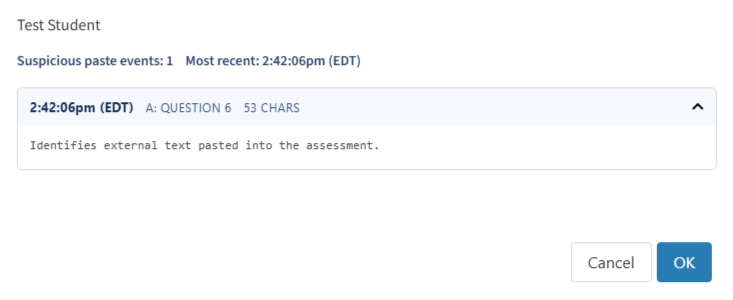
If the Copy/Paste indicator is triggered, teachers can select the icon to review any copy pasted material. The material will be organized in which question that student had pasted it into. Teachers can use this functionality to review what material the student pasted into the test.
Pasting material from outside sources is not permitted. This is noted in both the student attestation and in the teacher script. If a student copy/pasted material from an outside source to respond to a question, this must be reported as an issue (academic dishonesty) in the e-assessment system.

Flag 3: Exiting of an Active Assessment
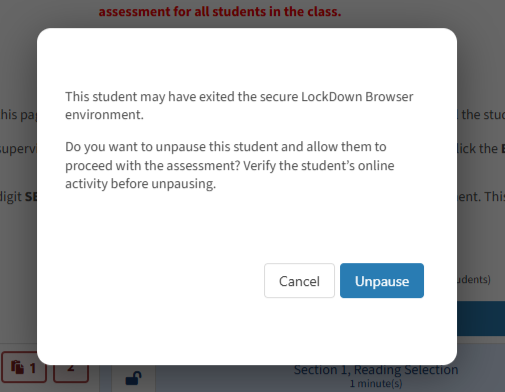
If for any reason the student exits the test page, the student will be automatically paused. This includes closing the test site, leaving the full screen mode, or opening another application on the same device.
Unpausing Students
If a student was paused because of any of the flags listed above, the teacher has the ability to unpause the students at their discretion. You should verify the student’s activity before unpausing. If a student has accessed outside sources or tools to assist with responses to their test, this is not permitted and must be reported as an issue.
There may be situations where a flag would appear that might not indicate a deliberately prohibited action by the student and you would unpause the student’s test. For example, if a student’s device loses power or internet connection, or if an application of the students device triggers a pop-up notification without the students direct interaction, these might cause the flag to trigger and pause the student.
To unpause a paused student, select the red exclamation mark and in the pop up that appears select Unpause to allow the student to continue with the assessment.

Disable Autopausing of Students with Assistive Technology IEPs
All of the flags and the auto-pausing functionality, also applies to any students that are accessing the assessment with alternative access because of their assistive technology accommodation noted on their IEP.
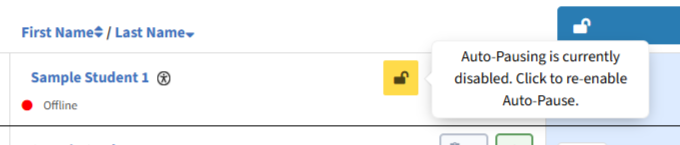
Depending on the assistive technology required, teachers will be able to disable auto-pausing triggered by the flags so that those students can access the tools without interruption (for example, some of the Google Read&Write functionality may trigger the flag for Accessing Material Outside of the Test Page). To do this, the teacher selects the red lock icon by the student’s name to disable the auto-pause functionality. If you disable the auto-pause feature, this will require closer monitoring of the student’s online activity to ensure they are not accessing outside resources (e.g. AI, online sources).

After selecting the red lock will be open. At any time, the teachers can click on the open lock to re-enable the auto-pausing technology if required.
Reporting issues
As soon as a teacher or school administrator is aware of an issue that may affect the security, validity or reliability of the assessment, they must report it to EQAO. Refer to Professional Responsibilities. Refer to Professional Responsibilities. The EQAO reviews and investigates reported issues. If an issue is deemed to have impacted the reliability of the student’s responses, the student’s results may be withheld. Invigilators and school administrators may be contacted to provide additional information related to the nature of the reported issue.
All issues in any category should be reported through the teacher Invigilation page using the Report an Issue button. An EQAO issues resolution team reviews reported issues.
- On the Invigilation page, click Report an Issue.
- Click OK.
- Select the issue category: Technical Support, Student Response Issue or Administration Anomaly or Academic Dishonesty
- Describe the issue in detail.
- Select the affected student(s).
- Click Report.
Categories for reporting issues
Technical Support
Any system issue that affects the ability of the student to continue the assessment. For example, inability to:
- log in
- continue
- proceed to the next question
- access assistive technology
- submit the test
Student Response Issue
Any issue that a student reports that may have affected their ability to answer a particular question but did not prevent them from proceeding with the assessment. The EQAO will review and students will not be penalized if a technical glitch prevented them from answering a question. These questions will be excluded from the student’s score.
Administration Anomaly or Academic Dishonesty
Any issue that affects the validity and reliability of the student’s results (answers copied from others or outside sources, unsupervised setting, wrong OEN, test security). When reporting issues of collusion or academic dishonesty please ensure the following details are included: a description of the event, the results of the school’s investigation, and which part(s) of the test are believed to be compromised. Student results may be withheld.
Do not report if:
- the internet shuts down, but the invigilators are still supervising during this time
- a student appears to be offline but is actually completing the test
- if a device stops working, but student can have access to another device
- a student uses a phone but the school determines it was not used to influence student responses
- a student is absent
- a student response appears not to be saved (student responses are automatically saved at regular intervals in the system)
Unsubmitting a session
All students may have additional time to complete the OSSLT; and the school will need to make scheduling decisions to ensure each session of the OSSLT is completed in a continuous sitting. A continuous sitting cannot be interrupted by an unsupervised break period (e.g., lunch), or span multiple days. When a student submits a session, they will not be able to access it after one hour has passed.
In summary, an invigilator may unsubmit a student’s session if:
• a student accidentally submitted session and is still in the same continuous sitting sitting and it has been less than one hour since the student accessed the session; or
• needed to transcribe student response (for students with this accommodation)
A session can only be unsubmitted if the student responses have yet to be submitted to EQAO for scoring by the teacher.
If you have already clicked Submit to EQAO for scoring, a new OSSLT will need to be scheduled and started before a student’s session can be unsubmitted upon approval from EQAO.
Steps to unsubmitting a session
- The student must log out.
- Verify if the student is logged out reviewing the student’s status on the Invigilation page which should indicate Offline.
- Click the Show Unsubmit Session Button at the top of the page.
- Notice the title on the button changes to Hide Unsubmit Session Button and an unsubmit icon (a rectangle with an x) appears next to each student’s submitted session.
- Click the unsubmit icon for the session:
- Select the reason:
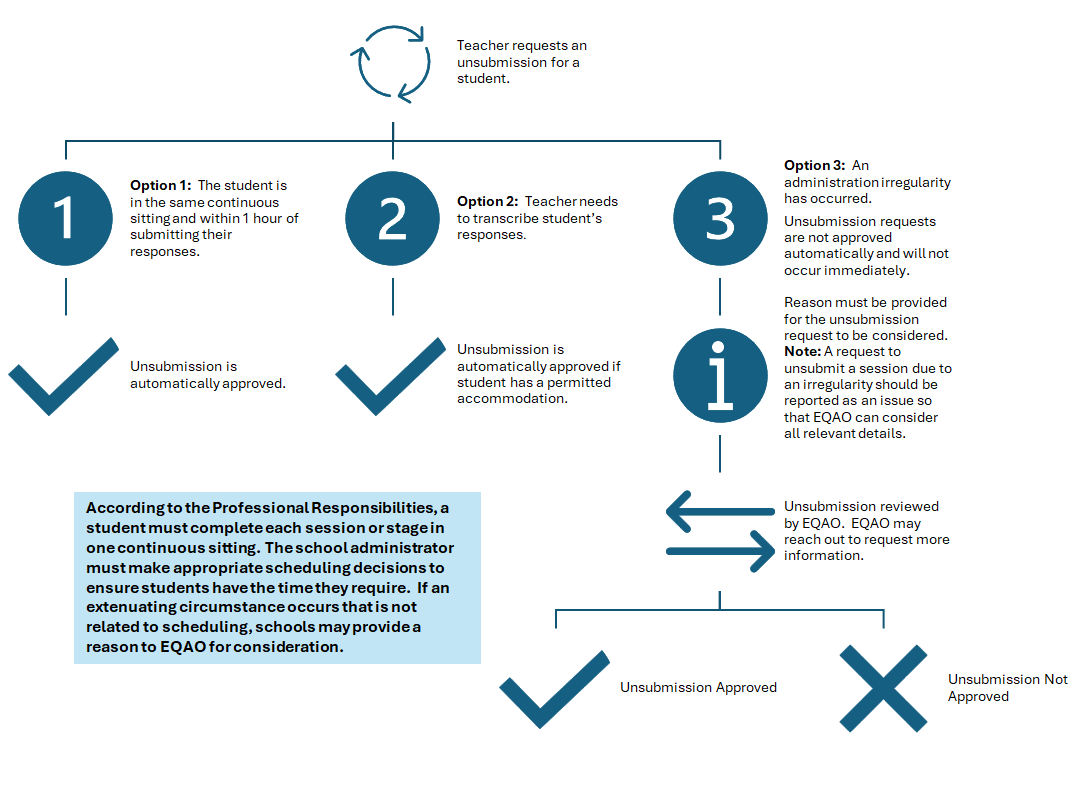
- Option 1: the student is in the same continuous sitting and within 1 hour of submitting their responses.
- Option 2: the teacher needs to transcribe a student’s responses for those with this permitted accommodation.
- Option 3: an administration irregularity occurred that prevented the student from completing the test within one continuous sitting.
- Option 1 will be automatically approved as long as it is within one hour from the last time a student accessed the test. If outside of this time limit, it will not be approved. Go to Step 6.
- Option 2 will be automatically approved if the student has a permitted accommodation. Go to Step 6.
- Option 3 will require approval from EQAO and will not occur immediately. This will not be approved if the issue is related to scheduling. Check your Message Centre regularly for updates. If approved, go to Step 6.
- Select the reason:
- For approved unsubmission requests, the lock icon now appears beside the student name. Click to unlock and allow the student to continue where they left off or transcribe the student responses.
Autosubmission of sessions
Each session of the OSSLT must be completed in one continuous sitting. A student should click Submit once they complete each session.
Any student who had started a session but did not submit their work will have their session automatically submitted by the system by 5:00 p.m. (ET) to prevent student sessions from remaining open when not in use.
- Verify if students have submitted completed sessions on the Invigilation page.
- A green checkmark indicates the student has submitted their work.
- If you are actively invigilating a session at the time of auto submission you will receive a warning message on the Invigilation page. Make a choice to:
- extend the time to allow a student to complete; or,
- proceed with the scheduled auto submission
Step 4 – Submitting sessions to EQAO for scoring
- Once all students have completed all sessions and the student questionnaire, click Submit to EQAO for scoring.
- Type Yes to confirm the submission.
- Click OK.
Administering the test to a student after a scheduled assessment session
IMPORTANT:
Scenario 1
If you have not clicked Submit to EQAO for scoring, the student session will still appear available. This means you will see a lock icon next to the student’s name for either Session A or Session B. Students who have not started the OSSLT can still access the assessment. You may unlock the session so the student can begin.
Scenario 2
If you have clicked Submit to EQAO for scoring, the Teacher or School Administrator will not see an available test session. This means the Teacher or School Administrator will be unable to unlock Session A or Session B for the student if they need to write. A new test session needs to be scheduled Scheduling the OSSLT.